
The Library
The Library gathers the assets available to all your Modules into a single window. This includes all visuals (images, icons, and masks), templates, and random tables. The Library is accessible from the Lobby via its dedicated tab, and from inside any open Module by clicking the dedicated button in the upper toolbar or by pressing the "L" key.

The Library contains both your own assets and the ones provided by Alkemion as resources and examples. Later on, you will be able to access assets shared by the community.
In addition to allowing you to find specific elements to add to your board, the Library can also serve as a great source of inspiration. Simply browsing through the visuals or rolling a couple of random tables could spark a new idea or get you started on a project.
Content Types
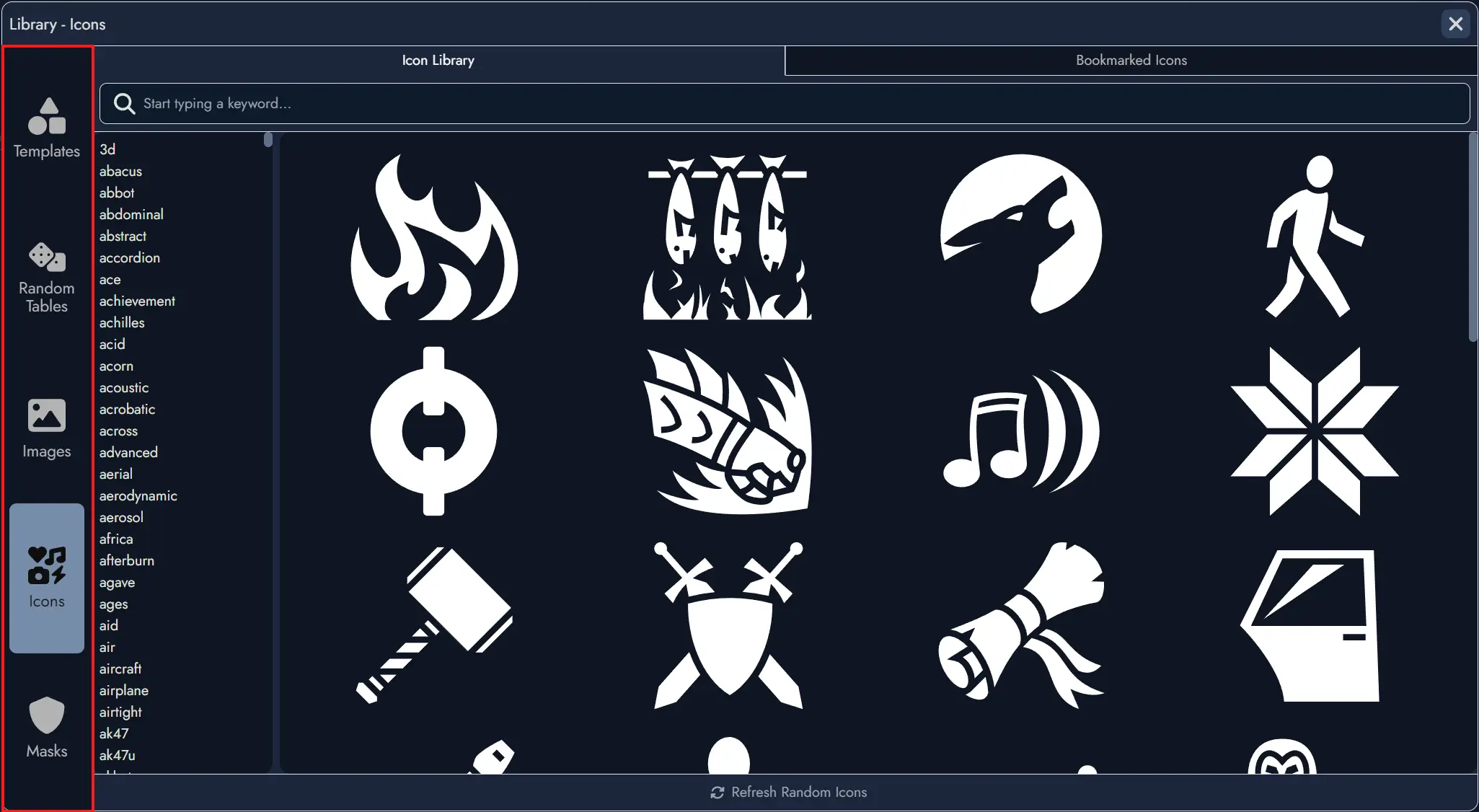
The Library is organized by content types. You can access the different sections via a series of tabs:
Search Filters
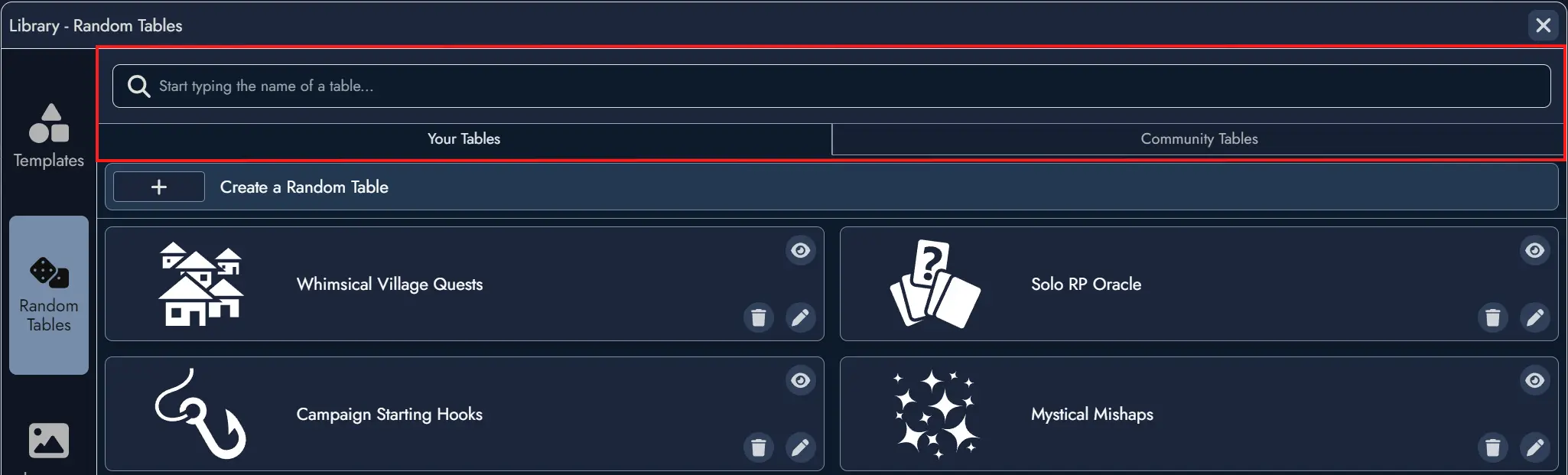
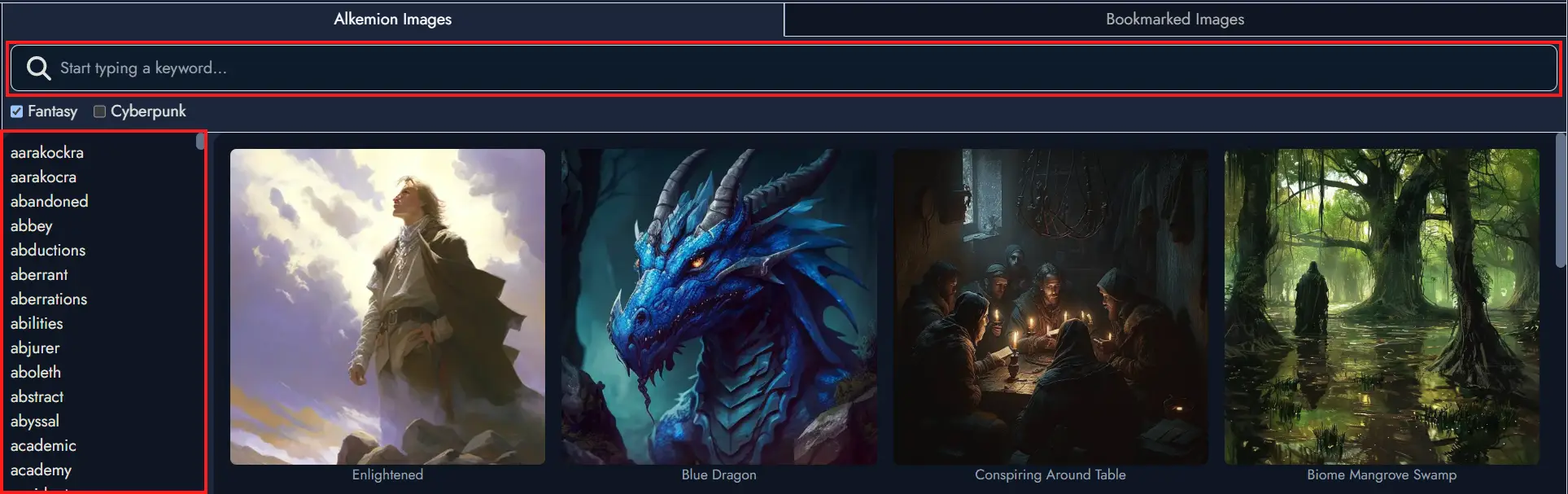
Most categories feature a search field to help filter content, which is further divided between your own assets and those shared by the community.
Additionally, the Image category features a list of keywords for browsing.
Create New Assets
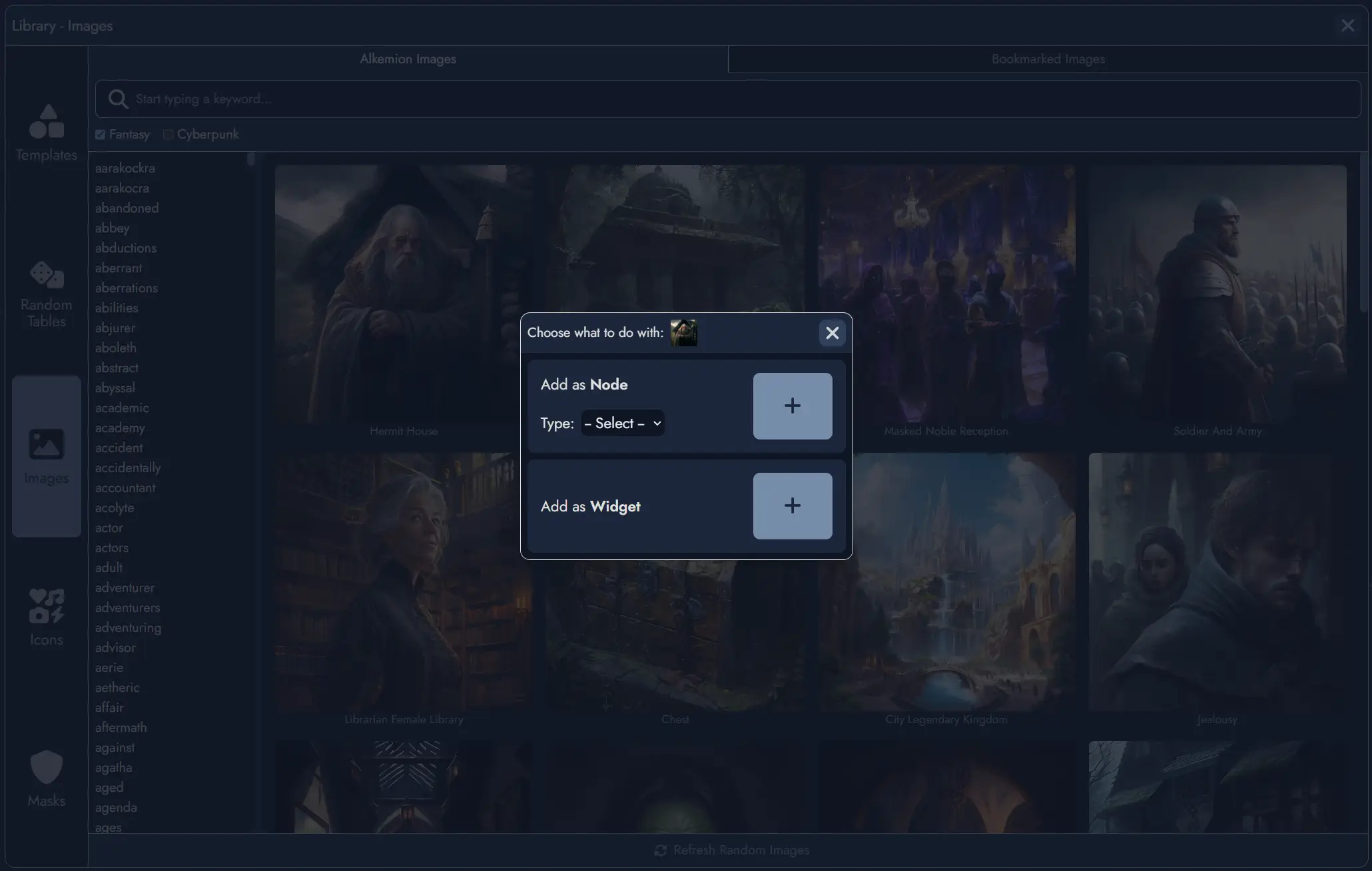
When you find an interesting item in the Library, you can directly create a new Asset based on this item if it is a Random Table, an item from a Random Table, an Image, or an Icon.
Selecting a Template allows you to import it directly into your board and create all the Assets it contains.
Collection Library
When a Module belongs to a Module Collection, the Library panel displays a toggle switch labeled with the name of the Module Collection. Using it switches the Library view between your full global Library and the curated assets for that collection.
This makes it easy to find the assets most relevant to your current project without having to search through your full Library. Any asset type can be curated: Templates, Tag Collections, Images, Icons, Masks, and Random Tables.
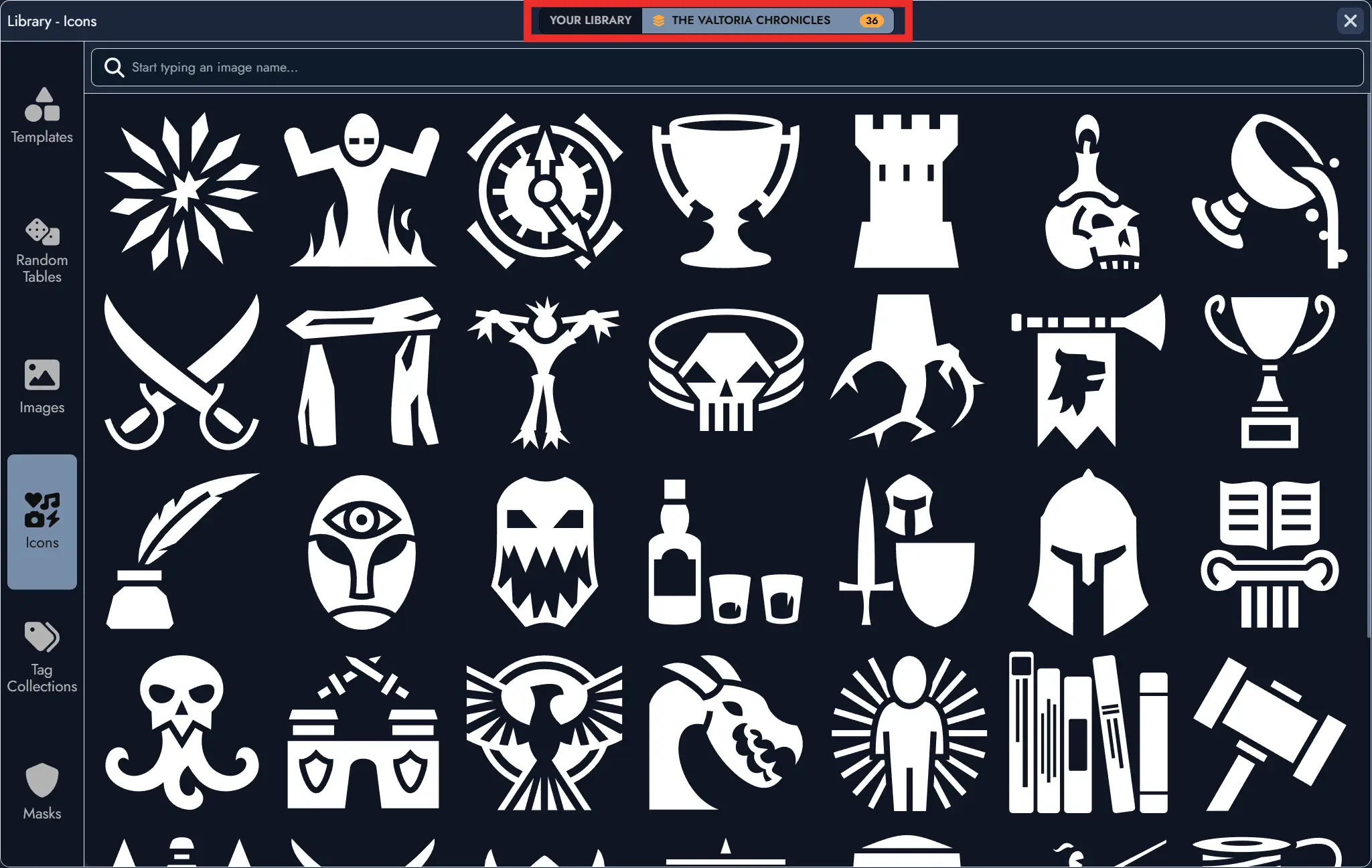
To curate an asset for the collection, open the Library while inside any Module belonging to the collection (including the Module Collection itself). Each asset displays a Curate for collection toggle. Assets already curated show a visual indicator in the Library.


Removing an asset from the curated selection does not affect the asset itself. Demoting a Module Collection clears all its curated asset associations, but the underlying Library assets are not deleted.
Random Tables
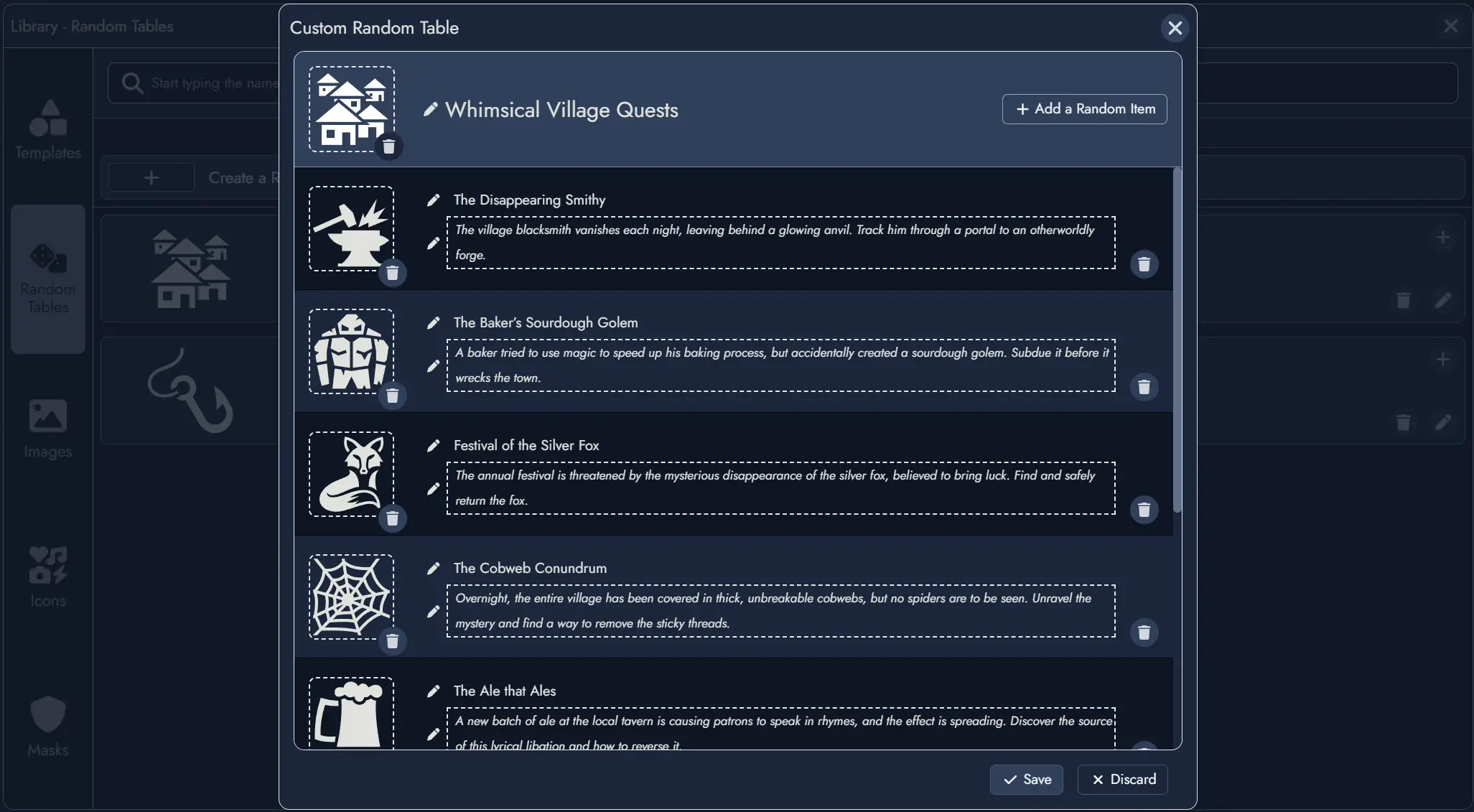
The Random Tables section offers additional options. You can select a Random Table to view the items it contains. In the "Your Tables" section, you have the option to create a new Random Table, edit an existing one, or delete one. More information can be found in the dedicated Random Tables page.
Tag Collections
The Tag Collections section lets you build and manage reusable sets of Tags. A Tag Collection can be imported into any Module, giving you a consistent set of labels across multiple projects without recreating them from scratch each time. More information can be found in the dedicated Tags page.